Things wrapped up quite nicely today, with many great insights and connection that were made through out the day.
I wish I had a way to attending more sessions, as there isn't one that hasn't taught me something or provided illumination that I can carry with me after I leave.
Looking forward to the last day, there are still quite a few sessions to choose from and I can't wait to continue conversations with all the people I've met over the last few days.
Cross your fingers that the airlines can keep their stuff together tomorrow....I hear things are rough out there.
If you are from Roosevelt and are reading this - please let me know your thoughts and provide suggestions or questions about the content. I will try to find a resource or individual that you can connect with.
Thanks for reading....
Wednesday, April 16, 2008

The Great ILS Challenge
That Spells Serious Games - 2.0 - presentation conducted with 4 panelists who come together and discuss a topic (how to present learning with games to a global learner base) and come up with solutions.
As I am running out of steam, I think that I will defer to some of the other bloggers post that are in this presentation or try to find a post from the eLearning Guild site. Linking to come later......
As I am running out of steam, I think that I will defer to some of the other bloggers post that are in this presentation or try to find a post from the eLearning Guild site. Linking to come later......
Another blogger - Tracy Hamilton
http://discovery-thru-elearning.blogspot.com/
Here's another blogger at the conference - Tracy Hamilton from Canada. Went to her dinner last night at Wolfgang Puck's, gotta love the friendly ducks there.
Here's another blogger at the conference - Tracy Hamilton from Canada. Went to her dinner last night at Wolfgang Puck's, gotta love the friendly ducks there.
Captivate Tips and Tricks for v3.0 - J. Ganci
This has to be the fastest demonstration I've been to in awhile. Below is the cliff notes, I will post screen shots and possibly demonstrations later. I need a break!
Note: all these tips plus additional information will be found at J. Ganci's website in about two days
Roll over slidelets - these are found under the Insert menu - a rollover slidelet is a space on a slide that displays an associated slidelet (a slide within a slide) when the mouse is moved over the space. You can insert and display objects in the slidelet using the same procedure as that for the slides. Very cool - just a note, you can remove blue frame that is shown as a default by accessing the properties of the rollover area and unchecking the border on the main tab.
In the image below, what I did is add a slidelet over my dog Sophie's nose (the brown dog) so when you mouse over it, my other dog's tongue appears (the black dog). The image (or other object except for mouse movements and interactions) will appear for however long you have programmed it to appear in it's own timeline. Click on the image to see it in it's original size.....

Redraw shape was explained at this time to customize the roll over area. If you right mouse on the roll over area in the slide, the Redraw Shape option appears:
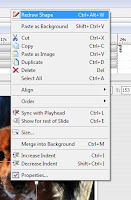
This allows you to customize the shape (rather than having the default square/rectangle) that the rollover box takes on the screen. This way you can be more precise with roll over areas - when I tested it, I outlined Sophies nose exactly, so if you click anywhere except directly on the black part of her nose, the slidelet will not play. Very cool if you need to have more precise interactivity.
You can resize images in slidelets as you import them just as you would with the main slides - however videos are different - but the x/y ratios must match....
Another note: small areas that are created when you start using rollovers can be difficult to find and modify - these can be tabbed to (just like fields in software) and if you hit enter, it will bring up the properties and you can make changes from there.
Here is a new one for me. You can update captions and put in multiple tables that appear as defaults. This is accomplished by exporting the caption:
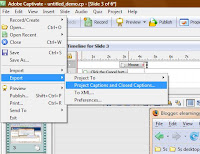
It is exported as a word file, which you can modify:

Just change the updated text section and save the file.
You can also create your own language files if there is a language you need to do Auto Captions for, but it was not included in the default languages. In the Captivate directory there are files(.rdl extensions):
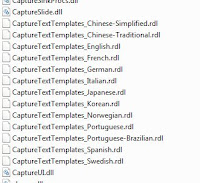
That you can open with notepad, modify, and save as the same format and they will appear in the language drop down of the recording window.
Naming slides helps when creating jumps - names will show up in jump drop down menu. Some other great ideas for notes slides include revision history or put instructions in for visually impaired individuals in the accessibility option.
He is going to present more tomorrow - topics include timing, narration, publishings, and other tips and tricks.
Note: all these tips plus additional information will be found at J. Ganci's website in about two days
Roll over slidelets - these are found under the Insert menu - a rollover slidelet is a space on a slide that displays an associated slidelet (a slide within a slide) when the mouse is moved over the space. You can insert and display objects in the slidelet using the same procedure as that for the slides. Very cool - just a note, you can remove blue frame that is shown as a default by accessing the properties of the rollover area and unchecking the border on the main tab.
In the image below, what I did is add a slidelet over my dog Sophie's nose (the brown dog) so when you mouse over it, my other dog's tongue appears (the black dog). The image (or other object except for mouse movements and interactions) will appear for however long you have programmed it to appear in it's own timeline. Click on the image to see it in it's original size.....

Redraw shape was explained at this time to customize the roll over area. If you right mouse on the roll over area in the slide, the Redraw Shape option appears:

This allows you to customize the shape (rather than having the default square/rectangle) that the rollover box takes on the screen. This way you can be more precise with roll over areas - when I tested it, I outlined Sophies nose exactly, so if you click anywhere except directly on the black part of her nose, the slidelet will not play. Very cool if you need to have more precise interactivity.
You can resize images in slidelets as you import them just as you would with the main slides - however videos are different - but the x/y ratios must match....
Another note: small areas that are created when you start using rollovers can be difficult to find and modify - these can be tabbed to (just like fields in software) and if you hit enter, it will bring up the properties and you can make changes from there.
Here is a new one for me. You can update captions and put in multiple tables that appear as defaults. This is accomplished by exporting the caption:

It is exported as a word file, which you can modify:

Just change the updated text section and save the file.
You can also create your own language files if there is a language you need to do Auto Captions for, but it was not included in the default languages. In the Captivate directory there are files(.rdl extensions):

That you can open with notepad, modify, and save as the same format and they will appear in the language drop down of the recording window.
Naming slides helps when creating jumps - names will show up in jump drop down menu. Some other great ideas for notes slides include revision history or put instructions in for visually impaired individuals in the accessibility option.
He is going to present more tomorrow - topics include timing, narration, publishings, and other tips and tricks.
Using Effective Design for Media: Make or Break your Content
presented by Mark Christman, an e-learning specialist from Regence BCBS. He is educated in film production, but has gotten into e-learning.
First thing he shows is a video from youtube....
MC considers this as an example of some really good e-learning. Comments so far include how little resources mixed with some high creativity can produce real impactful results.
Just briefly, MC has given some attention to the handouts, rather than giving just powerpoint slides, he has given some tools to use.......nice.
Starting off, MC asks, why is this important? We all know that e-learning without decent media design is .....well.....horrible. MC illustrates this by discussing how the content competes for the brains attention (working and long term memory along with visual and auditory input). He says you want to keep in mind the aesthetic usability effect, depth of processing and immersion. He also recommend the book Universal Principles of Design as a good guide.
Some other good books include the test we have for Ruth Clark from
Design Points:
vertical lines give the illusion of a solid effect, stability - same with horizontal.
diagonal lines seem to give off tension
s-Curve - very graceful, implies movement
Orientation sensitivity - think about how things are placed on the screen.
Foreground/Background - what shapes are you using? Use basic elements and a less is more approach rather than cluttering up the screen with too much stuff.
Use iconic representation that people are familiar with.
Interfearance effects-
Stroop
Garner
Proactive
Retroactive
Color and shape - for example red=stop, green=go - does a black circle mean continue, or a black button pointing right mean go back?
Tip!! - Free icons - smashingmagazine.com Just search for icons using the web utility - they are very tasteful and visually pleasing.
Are you using a grid to design - if you're not - reconsider - it will allow you to follow the rule of thirds better, balance your objects on the screen, be consistent and have simplicity. Also, the Golden Ratio - which is found in nature, our bone structure, and ancient Greeks used it to build architecture. Also mentioned
Ockham's razor.
Consistency - systems are more usable and learnable when similar part are expressed in similar ways - this really drives home the point of having design standards that are used universally within your company. Heck, even considering them in the first place is a huge step.
Practical applications - do you want to show the whole screen in a simulation or demonstration (especially with software) or just part of it.......also consider the rule of two thirds - that is where the focal pt should be.
Eye tracking - take a look here:

Using the handouts, MC has a project to learn about using a grid: I will try to post a video of this later.....
Moving on to color: - Do you use a color wheel when you design? MC recommends 5 or less colors overall.
Variation of color - what does tint and shade do? You can add these to your 5 colors to add variety. Warm/Cool colors - consider what the person is wearing when you take illustrative photos, what color are they wearing compared to the environment? There are several sites that can help with this, like well styled (must post link).
Sadly, I have to leave this wonderful presentation - there are more Captivate presentations happening right now!
First thing he shows is a video from youtube....
MC considers this as an example of some really good e-learning. Comments so far include how little resources mixed with some high creativity can produce real impactful results.
Just briefly, MC has given some attention to the handouts, rather than giving just powerpoint slides, he has given some tools to use.......nice.
Starting off, MC asks, why is this important? We all know that e-learning without decent media design is .....well.....horrible. MC illustrates this by discussing how the content competes for the brains attention (working and long term memory along with visual and auditory input). He says you want to keep in mind the aesthetic usability effect, depth of processing and immersion. He also recommend the book Universal Principles of Design as a good guide.
Some other good books include the test we have for Ruth Clark from
Design Points:
vertical lines give the illusion of a solid effect, stability - same with horizontal.
diagonal lines seem to give off tension
s-Curve - very graceful, implies movement
Orientation sensitivity - think about how things are placed on the screen.
Foreground/Background - what shapes are you using? Use basic elements and a less is more approach rather than cluttering up the screen with too much stuff.
Use iconic representation that people are familiar with.
Interfearance effects-
Stroop
Garner
Proactive
Retroactive
Color and shape - for example red=stop, green=go - does a black circle mean continue, or a black button pointing right mean go back?
Tip!! - Free icons - smashingmagazine.com Just search for icons using the web utility - they are very tasteful and visually pleasing.
Are you using a grid to design - if you're not - reconsider - it will allow you to follow the rule of thirds better, balance your objects on the screen, be consistent and have simplicity. Also, the Golden Ratio - which is found in nature, our bone structure, and ancient Greeks used it to build architecture. Also mentioned
Ockham's razor.
Consistency - systems are more usable and learnable when similar part are expressed in similar ways - this really drives home the point of having design standards that are used universally within your company. Heck, even considering them in the first place is a huge step.
Practical applications - do you want to show the whole screen in a simulation or demonstration (especially with software) or just part of it.......also consider the rule of two thirds - that is where the focal pt should be.
Eye tracking - take a look here:

Using the handouts, MC has a project to learn about using a grid: I will try to post a video of this later.....
Moving on to color: - Do you use a color wheel when you design? MC recommends 5 or less colors overall.
Variation of color - what does tint and shade do? You can add these to your 5 colors to add variety. Warm/Cool colors - consider what the person is wearing when you take illustrative photos, what color are they wearing compared to the environment? There are several sites that can help with this, like well styled (must post link).
Sadly, I have to leave this wonderful presentation - there are more Captivate presentations happening right now!
Ok, using skype by the pool

is totally amazing. I could get used to having sunshine to work in. Just a little bit squinty though-
Moodle
Having some technical difficulties with the internet right now – Currently In Michelle Moore’s (from Remote-Learner.net) session on Moodle Goes Corporate – Leverage Open Source.
Since Moodle is open source, it’s free, can be shared with developer’s for changes to the code, and is community based with sharing of changes and enhancements. There are lot of talented people in the Moodle community who are passionate about it’s success and contribute time and resources in order to make that happen.
Open source also allows for e free redistribution , but no warranties. Some disadvantages/Myths – it’s not totally free as implementation needs at a minimum of hardware, training, support, and any partner services. It’s not true that it’s entirely secure and sometimes there is poor documentation. However there are no guarantees of continued development and no guarantees of quality (but this depends on the community), yet what you have is what you will continue to own.
Advantages include: it’s free, allows modifications, it’s community developed and supported. You escape lock-in and development is not dependant on marketing or one entity.
Things to look for with Open Source – the reputation (Moodle’s is very good), is there an ongoing effort, are standards high and interoperability available with other platforms, what support is available, what version are they on, and how much documentation is available.
So what about Moodle? It’s at over 40k sites in 196 countries, with 420k community members. There are several avenues for support and community collaboration, and the current version is ?. Documentation is readily available and books are being published for this platform. Bugs are tracked and are submitted by the community.
Exploring Moodle – included are
• Test pages
• Web pages (uses a simple HTML editor)
• Links to files (any e-files)
• Link to any URL
• Display directories or link to collection of files
• SCORM
Communication Tools include:
• Chat with transcript available
• Discussion Forums (only one file per post – zip multiple)
• Blogs with user profiles (no commenting)
• Messaging one to one
Features can be chose individually for the site.
Assessment tools include assignment submittal capability, polling (multiple choice), surveys, though the lessons, online quiz tools, and workshops for peer review.
So far there are no limits to the number of questions to a quiz (100 have been seen, seems like enough) and there are import capabilities so if you have content already created this can be easily submitted to Moodle.
Embedding video and flash is quick and easy using the html editor.
Collaboration tools:
• Database: record collection tool
• glossary (with auto linking with rest of course),
• FAQ,
• encyclopedia,
• wikis
Michelle ran us through some sample course such as a digital photography example, a social format (discussion space) course, and a SCORM course. Things tend to be a bit flat, she states, yet it looks very much like the Blackboard we are familiar with.
Note: LMS, LCMS, and CMS – very confusing acronyms that are being used synonymously in the industry. Learning mgt and Learning content management are v. different, but Moodle really falls into both categories, Content Mgt with Moodle is accomplished with a partnership with Alfresco – the difference is what your needs are, whether or not you need SCORM compliant offerings, do you need flexibility of several platforms or just one?
Customizing Moodle is v. easy and come in a variety of options from look and feel to adding modules or functionality such as linking to a db. Some Moodle partners even offer full customizations of the platform to meet your needs.
Themes can be applied but there are a lot of different ones created by the community available,
Modules and plug-ins that are standard are the book, questionnaires, certificate, and elluminate Live. Reports are available, but partners can generate more robust reporting.
I want to try Moodle – I can see several ways I can apply it in my corporate setting. We have servers lying around that I could potentially run it on and have enough in my tech toolbox that I think I can create something on par with what is already out there.
Since Moodle is open source, it’s free, can be shared with developer’s for changes to the code, and is community based with sharing of changes and enhancements. There are lot of talented people in the Moodle community who are passionate about it’s success and contribute time and resources in order to make that happen.
Open source also allows for e free redistribution , but no warranties. Some disadvantages/Myths – it’s not totally free as implementation needs at a minimum of hardware, training, support, and any partner services. It’s not true that it’s entirely secure and sometimes there is poor documentation. However there are no guarantees of continued development and no guarantees of quality (but this depends on the community), yet what you have is what you will continue to own.
Advantages include: it’s free, allows modifications, it’s community developed and supported. You escape lock-in and development is not dependant on marketing or one entity.
Things to look for with Open Source – the reputation (Moodle’s is very good), is there an ongoing effort, are standards high and interoperability available with other platforms, what support is available, what version are they on, and how much documentation is available.
So what about Moodle? It’s at over 40k sites in 196 countries, with 420k community members. There are several avenues for support and community collaboration, and the current version is ?. Documentation is readily available and books are being published for this platform. Bugs are tracked and are submitted by the community.
Exploring Moodle – included are
• Test pages
• Web pages (uses a simple HTML editor)
• Links to files (any e-files)
• Link to any URL
• Display directories or link to collection of files
• SCORM
Communication Tools include:
• Chat with transcript available
• Discussion Forums (only one file per post – zip multiple)
• Blogs with user profiles (no commenting)
• Messaging one to one
Features can be chose individually for the site.
Assessment tools include assignment submittal capability, polling (multiple choice), surveys, though the lessons, online quiz tools, and workshops for peer review.
So far there are no limits to the number of questions to a quiz (100 have been seen, seems like enough) and there are import capabilities so if you have content already created this can be easily submitted to Moodle.
Embedding video and flash is quick and easy using the html editor.
Collaboration tools:
• Database: record collection tool
• glossary (with auto linking with rest of course),
• FAQ,
• encyclopedia,
• wikis
Michelle ran us through some sample course such as a digital photography example, a social format (discussion space) course, and a SCORM course. Things tend to be a bit flat, she states, yet it looks very much like the Blackboard we are familiar with.
Note: LMS, LCMS, and CMS – very confusing acronyms that are being used synonymously in the industry. Learning mgt and Learning content management are v. different, but Moodle really falls into both categories, Content Mgt with Moodle is accomplished with a partnership with Alfresco – the difference is what your needs are, whether or not you need SCORM compliant offerings, do you need flexibility of several platforms or just one?
Customizing Moodle is v. easy and come in a variety of options from look and feel to adding modules or functionality such as linking to a db. Some Moodle partners even offer full customizations of the platform to meet your needs.
Themes can be applied but there are a lot of different ones created by the community available,
Modules and plug-ins that are standard are the book, questionnaires, certificate, and elluminate Live. Reports are available, but partners can generate more robust reporting.
I want to try Moodle – I can see several ways I can apply it in my corporate setting. We have servers lying around that I could potentially run it on and have enough in my tech toolbox that I think I can create something on par with what is already out there.
Subscribe to:
Posts (Atom)